
MISSION STATUS: GO FOR LAUNCH

Launch Your
Lab2Aid Journey

Mission, engage.

Manage every Lab2Aid app from a single launcher.
Install, update, and launch — with one click.

T-MINUS
00:00:10
TO LAUNCH

MISSION MANIFEST

On-board payload — each app is a rocket standing by on the pad

LC-39A · PAYLOAD-01
TrueTimer — Dreamy Garden hero
Open LP ↗

TrueTimer

Hare-and-tortoise focus timer. Auto-detects away time to measure real work hours.

VERSION v1.3.0
PLATFORM macOS · Win
MISSION PRODUCTIVITY
READY
SLC-36 · PAYLOAD-02
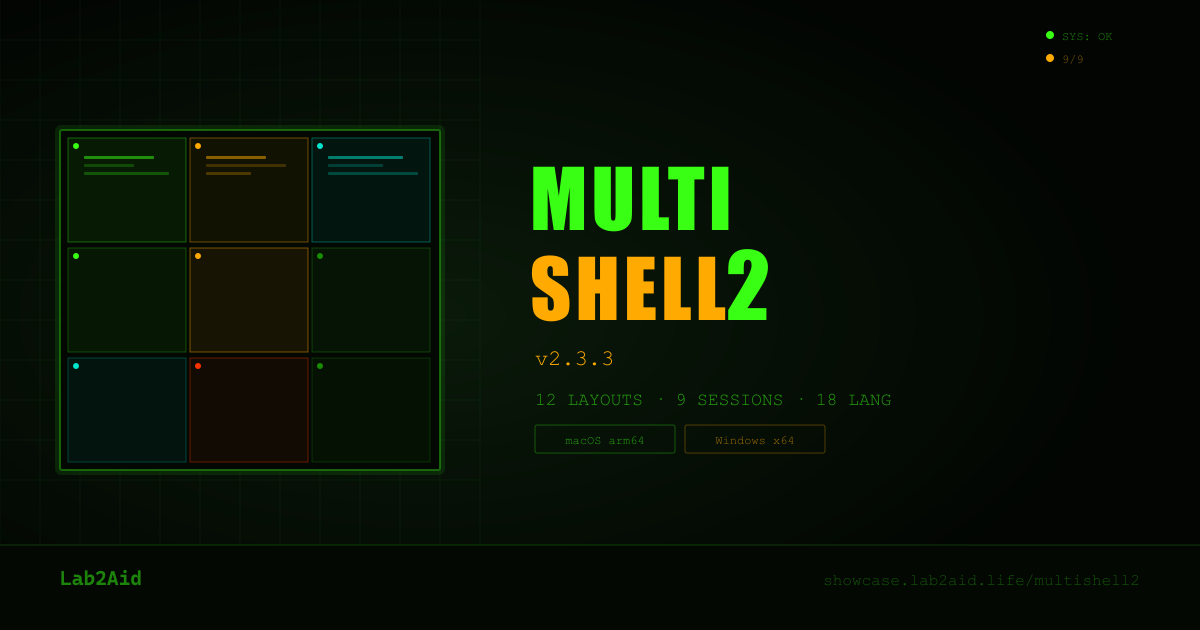
MultiShell2 LP preview
Open LP ↗

MultiShell2

12 layouts × up to 9 sessions. NASA-grade multi-terminal control.

VERSION v2.3.3
PLATFORM macOS · Win
MISSION DEVTOOLS
READY

FLIGHT PLAN

Flight Plan — subscription tiers tailored to your mission

GROUND CREW
FREE
$0
Forever free
  • Launcher itself — free distribution
  • Install & launch all free apps
  • Zitadel SSO · Auto-updates
DOWNLOAD FREE
STANDARD ORBIT
BASIC
$2
/month (Lab2Aid subscription)
  • All FREE features
  • All Lab2Aid BASIC apps
  • Unlimited BASIC AI
Subscribe to BASIC
MISSION FUEL
AI COIN
1 LC
/ pay-per-use
  • Major LLMs (OpenAI / Gemini, etc.)
  • No subscription · No expiration
  • Usable in other AI Coin apps
View Labcoin

LAUNCH PROTOCOL

Your app lifts off in a 5-step countdown

T−10:00

AUTHENTICATION CLEARANCE

Secure sign-in via Zitadel OIDC PKCE. Authenticate with your Google or Apple account. All communications are end-to-end encrypted.

OIDC PKCE · GOOGLE · APPLE
T−05:00

PAYLOAD SELECTION

Pick apps to install from the library. Review the latest version info and release notes.

APP LIBRARY · VERSION CHECK
T−01:00

FUEL LOADING

Download apps from a secure CDN. A progress bar shows real-time status. Signature verification ensures integrity.

DOWNLOAD · VERIFY · INSTALL
T−00:10

FINAL COUNTDOWN

Installation completion check. Shortcut created, initial setup complete. All systems GO.

SYSTEM CHECK · ALL GO
T+00:00

LIFT-OFF

Installation complete. Your app launches and welcomes you to the Lab2Aid ecosystem. Auto-updates keep everything current.

MISSION ACCOMPLISHED

MISSION CONTROL

Four core systems that make every launch a success

SECURE TELEMETRY

Fully encrypted with Zitadel OIDC PKCE authentication. Auth tokens are stored safely on-device. All traffic runs over HTTPS/TLS.

OIDC-PKCE · TLS 1.3 · LOCAL-TOKEN

MULTI-ORBIT DEPLOYMENT

Supports macOS (arm64 / x64) and Windows (x64). Manage multiple platforms seamlessly with one account.

macOS ARM64 · macOS X64 · WIN X64

AUTO-MISSION UPDATES

Detects and downloads the latest versions automatically in the background. Applied on restart. Always stay secure and up to date.

AUTO-CHECK · DELTA-UPDATE · SILENT

ONE-CLICK LAUNCH

Pick an app from the library and installation and launch happen automatically. No complex setup required. Ready to use within seconds on first run.

1-CLICK · AUTO-CONFIG · INSTANT

BOARDING

Complete your boarding pass. Lab2Aid Launcher v1.0.33 — free

macOS · arm64 / x64

CREW VEHICLE

DMG — disk image format
Supports Apple Silicon and Intel

DOWNLOAD (macOS)
v1.0.33 · approx. 85 MB · macOS 12+
Windows · x64

CARGO PAYLOAD

NSIS — installer format
Works with Windows 10 / 11

DOWNLOAD (Windows)
v1.0.33 · approx. 75 MB · Windows 10+

REQUIRES INTERNET CONNECTION · FREE DOWNLOAD · ZITADEL ACCOUNT AUTO-CREATED ON FIRST LAUNCH

Installation guide

Detailed step-by-step instructions for each OS, from first install to first launch

macOS
macOS 12 (Monterey) or later
  1. Download the DMG file

    Click the "DOWNLOAD (macOS)" button. Lab2Aid-Launcher-1.0.33.dmg (approx. 85 MB) is downloaded.

  2. Mount the DMG

    Double-click the downloaded .dmg file. The disk image opens.

  3. Drag to the Applications folder

    Drag Lab2Aid Launcher.app to the Applications folder, following the arrow shown.

  4. Handle the Gatekeeper warning on first launch

    Launch Lab2Aid Launcher from Launchpad or the Applications folder. If you see "can't be opened because the developer cannot be verified":

    Fix: System Settings → Privacy & Security → click "Open Anyway" next to "Lab2Aid Launcher was blocked". Then select "Open" in the confirmation dialog.

  5. Sign in

    On first launch your browser opens with the Zitadel sign-in screen. Sign in with your Google or Apple account.

  6. Install apps

    After signing in, a list of available apps (TrueTimer / MultiShell2) is shown. Click "Install" and you're done.

💡 Troubleshooting
  • "App is damaged and can't be opened": run xattr -cr /Applications/Lab2Aid\ Launcher.app in Terminal
  • Apple Silicon (M1/M2/M3/M4) optimized: runs as an arm64 native binary
  • Uninstall: drag Lab2Aid Launcher.app from the Applications folder to Trash
Windows
Windows 10 / 11 (64-bit)
  1. Download the installer

    Click the "DOWNLOAD (Windows)" button. Lab2Aid-Launcher-Setup-1.0.33.exe (approx. 75 MB) is downloaded.

  2. Handle the SmartScreen warning

    When you run the installer, you may see a "Windows protected your PC" warning.

    Fix: click "More info" → click the "Run anyway" button. This appears for unsigned or freshly released apps, but it is safe.

  3. Run the installer

    The setup wizard launches. Click "Next" and accept the terms of use.

  4. Choose an install location

    The default C:\Users\{username}\AppData\Local\Programs\Lab2AidLauncher is fine. Click "Browse" to change it.

  5. Finish installing and launch

    Click "Finish". Launch Lab2Aid Launcher from the desktop shortcut or the Start menu.

  6. Sign in

    On first launch your browser opens with the Zitadel sign-in screen. Sign in with your Google or Apple account.

  7. Install apps

    After signing in, a list of available apps (TrueTimer / MultiShell2) is shown. Click "Install" and you're done.

💡 Troubleshooting
  • Blocked by Windows Defender: use "More info" → "Run anyway" to proceed. It only appears on the first run
  • Administrator rights required? No (installs into user space)
  • Uninstall: Settings → Apps → Lab2Aid Launcher → "Uninstall"
  • Auto-start setting: can be enabled in the Launcher settings
Tip: after installation, auto-update is enabled. New versions are updated in the background and applied on next launch. No need to download manually again.